
asp.net minimal をローカル環境でなく Azure で動作できるようにします。ひとまず、Docker 化しておきましょう。
Dockerfile を作る
aspnet-minimal-sample の Dockerfile を書いて。
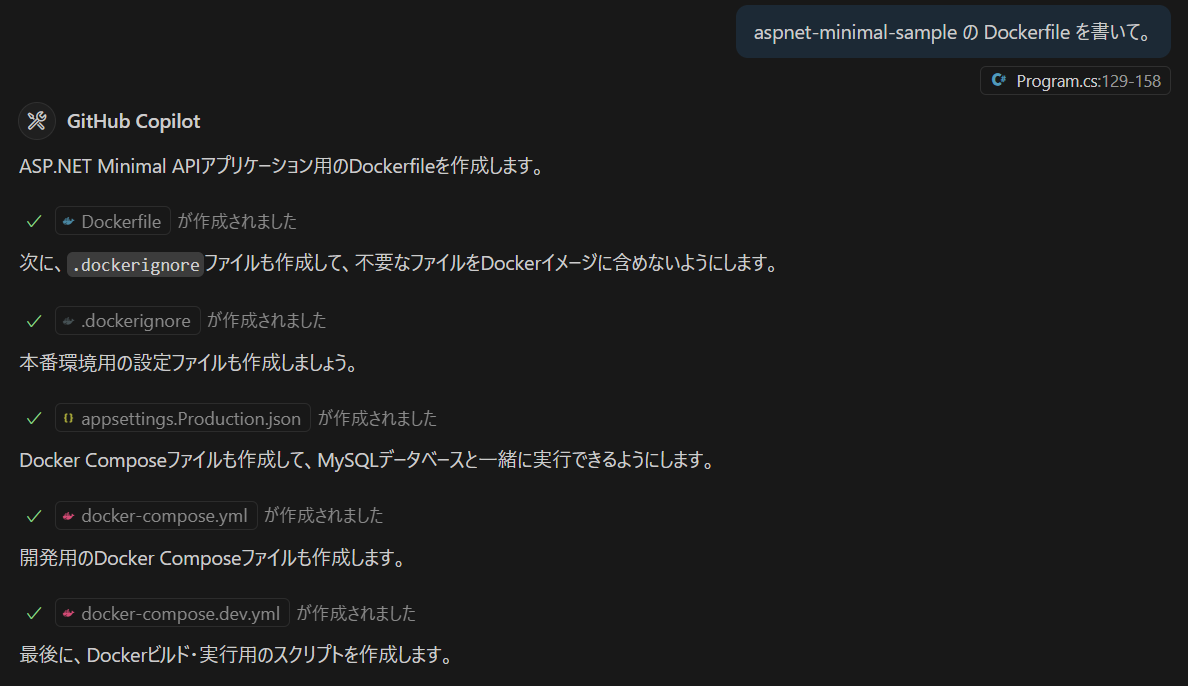
毎度、Docker ファイルを作るのが面倒なので、作ってくれるのはありがたい。
mysql も使うので docker-compose.yml も次いでに作ってくれます。
Dockerfile
# ASP.NET Minimal API Dockerfile

# Build stage
FROM mcr.microsoft.com/dotnet/sdk:9.0 AS build
WORKDIR /src

# Copy csproj and restore dependencies
COPY *.csproj ./
RUN dotnet restore

# Copy everything else and build
COPY . ./
RUN dotnet publish -c Release -o /app/publish

# Runtime stage
FROM mcr.microsoft.com/dotnet/aspnet:9.0 AS runtime
WORKDIR /app

# Copy published files
COPY --from=build /app/publish .

# Copy static files (wwwroot)
COPY --from=build /src/wwwroot ./wwwroot

# Create a non-root user
RUN adduser --disabled-password --gecos '' appuser && chown -R appuser /app
USER appuser

# Expose port
EXPOSE 8000

# Set environment variables
ENV ASPNETCORE_URLS=http://+:8000
ENV ASPNETCORE_ENVIRONMENT=Production

# Entry point
ENTRYPOINT ["dotnet", "aspnet-minimal-sample.dll"]
docker-compose.yml
version: '3.8'

services:
  # MySQL Database
  mysql:
    image: mysql:8.0
    container_name: mos-mysql
    environment:
      MYSQL_ROOT_PASSWORD: root
      MYSQL_DATABASE: mos
      MYSQL_USER: mos
      MYSQL_PASSWORD: mos
    ports:
      - "3306:3306"
    volumes:
      - mysql_data:/var/lib/mysql
      - ./database/init:/docker-entrypoint-initdb.d
    networks:
      - mos-network
    healthcheck:
      test: ["CMD", "mysqladmin", "ping", "-h", "localhost"]
      timeout: 20s
      retries: 10

  # ASP.NET Web API
  webapi:
    build:
      context: .
      dockerfile: Dockerfile
    container_name: mos-webapi
    ports:
      - "8000:8000"
    environment:
      - ASPNETCORE_ENVIRONMENT=Production
      - ConnectionStrings__DefaultConnection=Server=mysql;Database=mos;User=mos;Password=mos;
    depends_on:
      mysql:
        condition: service_healthy
    networks:
      - mos-network
    volumes:
      - ./wwwroot/images:/app/wwwroot/images

volumes:
  mysql_data:

networks:
  mos-network:
    driver: bridge
いまどき、Dockerfile や docker-compose.yml を一から作ることはなくて、大体が似たようなプロジェクトからコピーして少し修正するぐらいなので、その元ネタが Claude 由来ってところでしょうか。
マイグレーションファイルを作る
mysql に categories テーブル等を作成するマイグレーション用のコードを作成して。
データベースを Docker 内に構築するので、テーブル定義からマイグレーション用のコードを生成します。以前ならば、何らかのツールか手作業で作成するところですが、これも一気に作ってくれます。
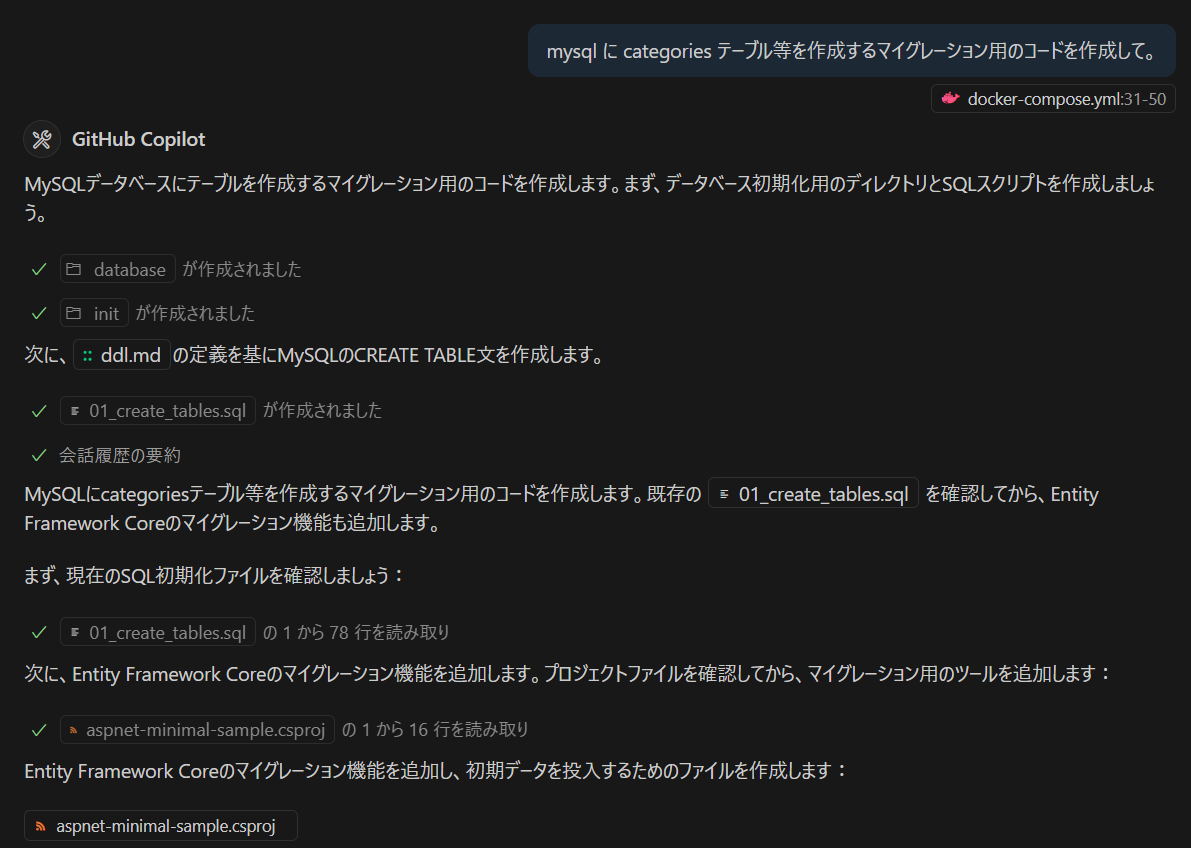
Seeder のサンプルも作ってくれて、丁寧にも readme.md にツールのドキュメントが生成されます。
README.md
# ASP.NET Core Minimal API with MySQL - マイグレーション管理

このプロジェクトでは、Entity Framework Coreを使用してMySQLデータベースとの連携を行います。

## 前提条件

- .NET 9.0
- MySQL 8.0以降
- Entity Framework Core Tools

## データベース設定

### 1. 接続文字列の設定

`appsettings.json`または`appsettings.Development.json`で接続文字列を設定してください:

```json
{
  "ConnectionStrings": {
    "DefaultConnection": "Server=localhost;Database=mos;User=root;Password=your_password;Port=3306;"
  }
}
```

### 2. マイグレーションの管理

#### PowerShell(Windows)

```powershell
# 初期マイグレーションを作成
.\migrate.ps1 init

# 新しいマイグレーションを作成
.\migrate.ps1 add "AddNewTable"

# データベースを最新のマイグレーションに更新
.\migrate.ps1 update

# マイグレーションの状態を確認
.\migrate.ps1 status

# 初期データを投入
.\migrate.ps1 seed

# データベースをリセット(危険)
.\migrate.ps1 reset
```

#### Bash(Linux/Mac)

```bash
# 初期マイグレーションを作成
./migrate.sh init

# 新しいマイグレーションを作成
./migrate.sh add "AddNewTable"

# データベースを最新のマイグレーションに更新
./migrate.sh update

# マイグレーションの状態を確認
./migrate.sh status

# 初期データを投入
./migrate.sh seed

# データベースをリセット(危険)
./migrate.sh reset
```

#### 手動でのEntity Framework Coreコマンド

```bash
# 初期マイグレーションを作成
dotnet ef migrations add InitialCreate

# データベースを更新
dotnet ef database update

# 初期データを投入
dotnet run -- --seed

# マイグレーションの状態を確認
dotnet ef migrations list

# 特定のマイグレーションに移行
dotnet ef database update TargetMigration

# データベースを削除
dotnet ef database drop
```

## マイグレーションファイルの構成

### 自動生成されるマイグレーション

Entity Framework Coreは、モデルの変更を検出して自動的にマイグレーションを作成します:

- `Migrations/[timestamp]_InitialCreate.cs`: マイグレーションの実行内容
- `Migrations/[timestamp]_InitialCreate.Designer.cs`: EF Coreのメタデータ
- `Migrations/AppDbContextModelSnapshot.cs`: 現在のモデルのスナップショット

### 手動でのSQL実行

手動でSQLを実行する場合は、`database/init/01_create_tables.sql`を使用できます:

```sql
-- MySQLに直接接続して実行
mysql -u root -p mos < database/init/01_create_tables.sql
```

## 初期データについて

### 自動投入される初期データ

`Services/DatabaseSeeder.cs`で以下のデータが自動投入されます:

- **カテゴリ**: 4件(コーヒー、紅茶・ティー、フード、季節限定)
- **商品**: 12件(各カテゴリの代表的な商品)
- **注文**: 2件(サンプル注文データ)
- **注文商品**: 関連する注文商品データ

### 初期データの投入

```bash
# 初期データを投入
dotnet run -- --seed

# または PowerShell
.\migrate.ps1 seed

# または Bash
./migrate.sh seed
```

## Docker環境での使用

Docker環境では、データベースの初期化が自動で行われます:

```bash
# 開発環境の起動
docker-compose -f docker-compose.dev.yml up

# 本番環境の起動
docker-compose up
```

## トラブルシューティング

### マイグレーションエラー

```bash
# マイグレーションをリセット
dotnet ef migrations remove

# データベースを削除して再作成
dotnet ef database drop
dotnet ef database update
```

### 接続エラー

1. MySQL サーバーが起動していることを確認
2. 接続文字列が正しいことを確認
3. データベース `mos` が存在することを確認

### パッケージエラー

```bash
# パッケージを復元
dotnet restore

# キャッシュをクリア
dotnet nuget locals all --clear
```

## API エンドポイント

マイグレーション後、以下のAPIエンドポイントが利用可能になります:

- `GET /mos/api/categories` - カテゴリ一覧
- `GET /mos/api/products` - 商品一覧
- `GET /mos/api/orders` - 注文一覧
- `POST /mos/api/orders` - 注文作成

詳細な仕様については、`webapi/mos-api.yaml`を参照してください。
DatabaseSeeder.cs を書き変える
データベースに投入する初期値は DatabaseSeeder.cs に書かれています。
using aspnet_minimal_sample.Data;
using aspnet_minimal_sample.Models;
using Microsoft.EntityFrameworkCore;

namespace aspnet_minimal_sample.Services;

public class DatabaseSeeder
{
    private readonly AppDbContext _context;

    public DatabaseSeeder(AppDbContext context)
    {
        _context = context;
    }

    public async Task SeedAsync()
    {
        // 既存のデータがある場合はスキップ
        if (await _context.Categories.AnyAsync())
        {
            Console.WriteLine("データベースには既にデータが存在します。初期データの投入をスキップします。");
            return;
        }

        Console.WriteLine("初期データを投入中...");

        // カテゴリの初期データ
        var categories = new List<Category>
        {
            new Category
            {
                Slug = "coffee",
                Title = "コーヒー",
                Description = "厳選されたコーヒー豆を使用したドリンク",
                Image = "/images/categories/coffee.jpg",
                SortId = 1,
                Display = 1
            },
            new Category
            {
                Slug = "tea",
                Title = "紅茶・ティー",
                Description = "世界各地から厳選された紅茶とハーブティー",
                Image = "/images/categories/tea.jpg",
                SortId = 2,
                Display = 1
            },
            new Category
            {
                Slug = "food",
                Title = "フード",
                Description = "軽食やデザートなど、お飲み物と一緒にお楽しみください",
                Image = "/images/categories/food.jpg",
                SortId = 3,
                Display = 1
            },
ちまちま書き変えてもいいのですが、既に laravel-webapi-sample で CategorySeeder.php と ProductSeeder.php が書かれているので、これを流用しましょう。
laravel-webapi-sample の ProductSeeder と CategorySeeder があるので、
これを使って aspnet-minimal-sample の DatabaseSeeder のデータを書き変えて。
PHP のコードから C# のコードに書き変えるだけなので、Copilot + Claude Sonnet の得意とするところでしょう。
コンバートが出来て一見できているように見えますが、CategoryIdの値が固定になっています。
        // 商品の初期データ
        var products = new List<Product>
        {
            // ハンバーガー
            new Product
            {
                CategoryId = categories[4].Id, // ハンバーガー
                Slug = "burger1",
                Name = "モスバーガー",
                Description = "",
                Image = "burger1.jpg",
                Price = 440,
                SortId = 1,
                Display = 1
            },
            new Product
            {
                CategoryId = categories[4].Id, // ハンバーガー
                Slug = "burger2",
                Name = "モスチーズバーガー",
                Description = "",
                Image = "burger2.jpg",
                Price = 480,
                SortId = 2,
                Display = 1
            },
実は、カテゴリはあちこちに割り振られるようにランダム値にしています。これを C# のコードにもいれておきます。
        // カテゴリの最大値からランダムidを取得
        function fake_category_id() {
            $maxId = Category::max('id');
            return rand(1, $maxId);
        }
この部分は手作業と Copiot で変更
        // カテゴリの最大値からランダムidを取得
        int fake_category_id()
        {
            var maxId = _context.Categories.Max(c => c.Id);
            return Random.Shared.Next(maxId) + 1; // 1からmaxIdまでのランダムな値を生成
        }


        // 商品の初期データ
        var products = new List<Product>
        {
            // ハンバーガー
            new Product
            {
                CategoryId = fake_category_id(),
                Slug = "burger1",
                Name = "モスバーガー",
                Description = "",
                Image = "burger1.jpg",
                Price = 440,
                SortId = 1,
                Display = 1
            },
.devcontainer コンテナを作成する
vscode では開発環境をコンテナ化できるのでこれを作成します。
.devcontainer を作成して。
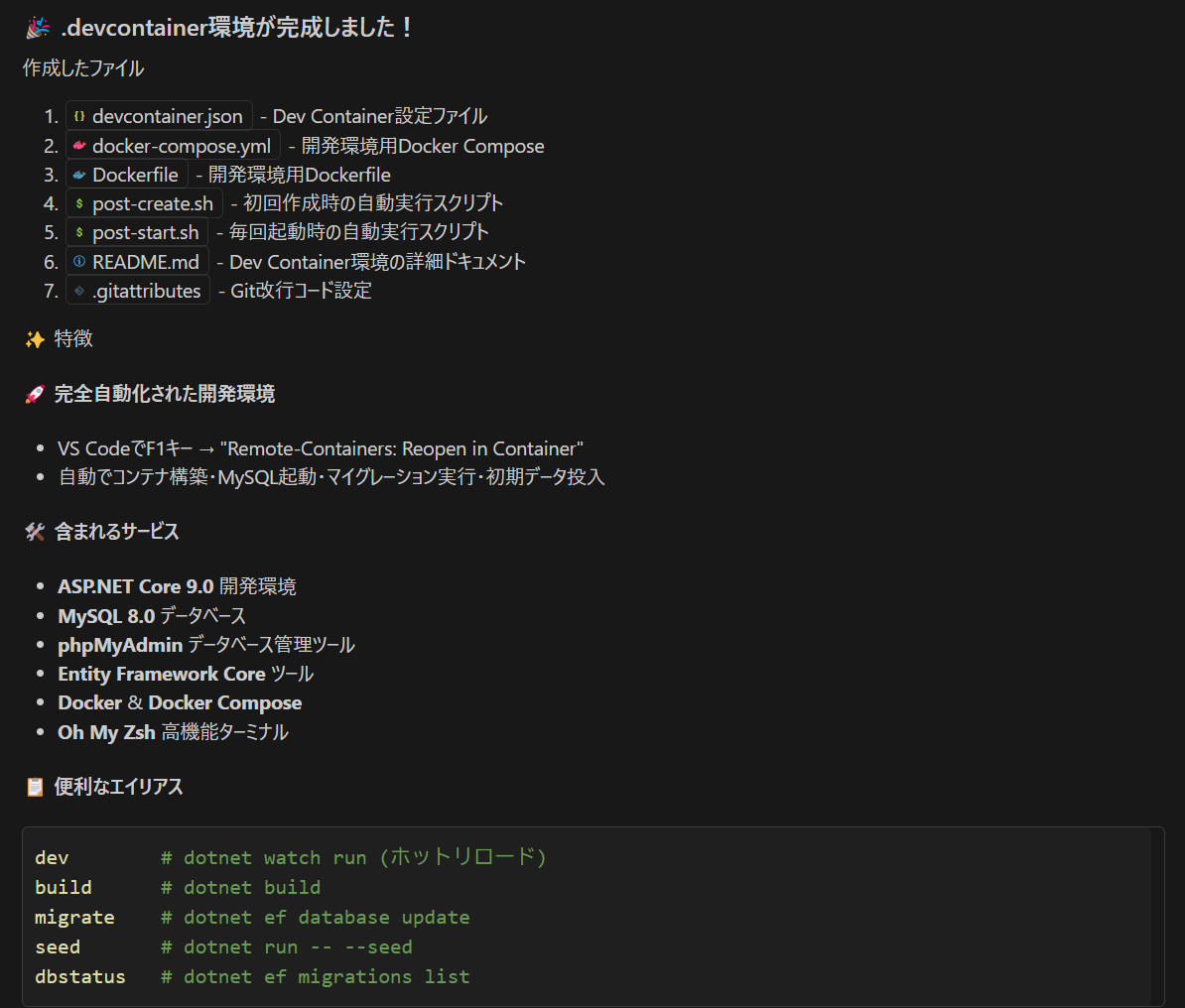
できあがったっぽいので、いったん vscode を閉じて開き直します。
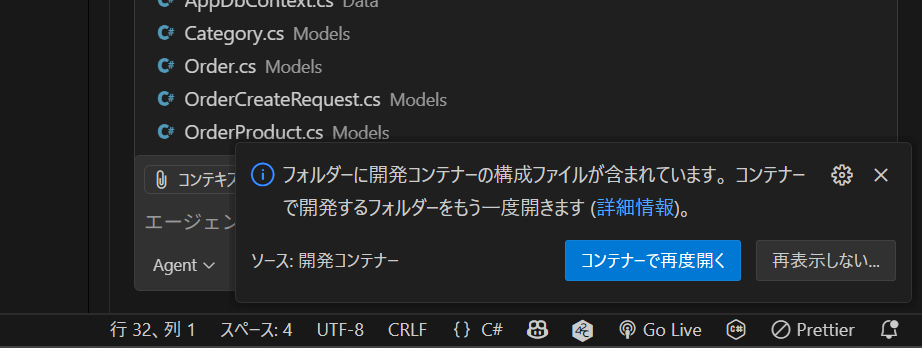
右下に「コンテナ―で再度開く」ボタンが出てきたら ok です。これをクリックすると Docker コンテナを作り始めます。
コマンドパレットで「開発コンテナ:コンテナ―で再度開く」を選択しても ok です。
で、一発でうまくいけばいいのですが、大抵はうまくいきません。素直に AI に聞いてみましょう。AI が書いたんだし。
リモートコンテナを開いたときにエラーがでます。
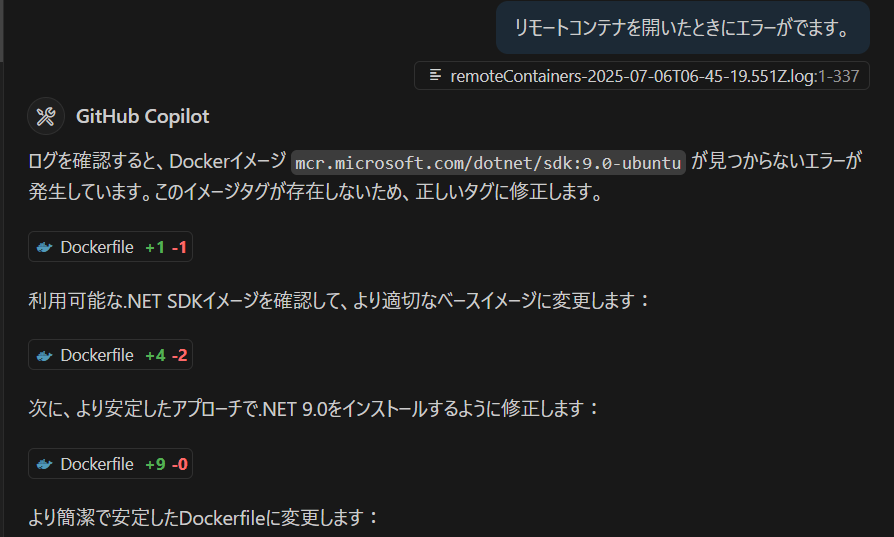
ubuntu の dotnet 9.0 のイメージが無いようです。
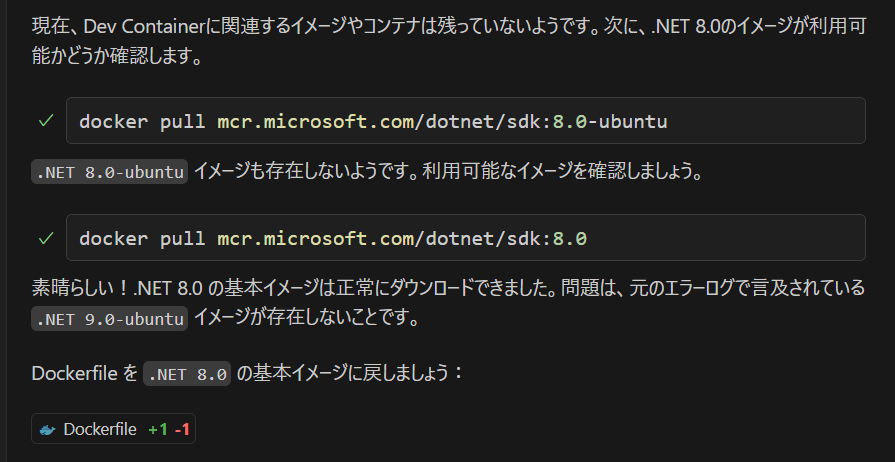
豪快に 8.0 に以降しようとしていますが、9.0 で使いたいんですよね。。。
.NET(Core)で利用可能なDockerイメージとタグ #Docker – Qiita https://qiita.com/karuakun/items/8d98f0430bf2dbc6af59
これを見る限り、Ubuntu 22.04 ならば 9.0-jammy、Ubuntu 24.04 ならば 9.0-noble となるはずです。
FROM mcr.microsoft.com/dotnet/sdk:8.0
の代わりに
FROM mcr.microsoft.com/dotnet/sdk:9.0-noble
を使ってみて。
執拗に Pomelo.EntityFrameworkCore.MySql を薦めてくるのですが、現時点では Oracle 提供の MySql.EntityFrameworkCore を使った方がいいです。
MySql.EntityFrameworkCore を使って。
この手の話は、実際に開発経験がないとわからないところでもあるし、Claude Sonnet にしても内部での学習済みモデルを作成したときの収集データ時期の問題もあり、そもそも、MySql.EntityFrameworkCore を使った例があまりブログなどでないという現状もあり。このあたり、「正解」なのか「多数決」なのかが問われるところです。
Docker コンテナを作る
さて、ビルドが通ったところで Docker の開発コンテナを作ります。今度はうまくイメージファイルをダウンロードできそうです。
ちなみに、先の 9.0 から 8.0 のダウングレード騒ぎのときに、Claude Sonnet が既存のコンテナを全削除してしまいました。この手のやらかしは結構あるかもしれません。
一見うまくいきそうだったのですが、何故か https://download.docker.com/linux/debian のところで失敗しています。
------
 > [dev_container_auto_added_stage_label 4/9] RUN curl -fsSL https://download.do
cker.com/linux/debian/gpg | gpg --dearmor -o /usr/share/keyrings/docker-archive-
keyring.gpg     && echo "deb [arch=$(dpkg --print-architecture) signed-by=/usr/s
hare/keyrings/docker-archive-keyring.gpg] https://download.docker.com/linux/debi
an $(lsb_release -cs) stable" | tee /etc/apt/sources.list.d/docker.list > /dev/n
ull     && apt-get update     && apt-get install -y docker-ce-cli     && apt-get
 clean     && rm -rf /var/lib/apt/lists/*:
0.917 Hit:1 https://deb.nodesource.com/node_20.x nodistro InRelease
1.171 Hit:2 http://archive.ubuntu.com/ubuntu noble InRelease
1.221 Hit:3 http://security.ubuntu.com/ubuntu noble-security InRelease
1.324 Ign:4 https://download.docker.com/linux/debian noble InRelease
1.391 Hit:5 http://archive.ubuntu.com/ubuntu noble-updates InRelease
1.614 Hit:6 http://archive.ubuntu.com/ubuntu noble-backports InRelease
1.656 Err:7 https://download.docker.com/linux/debian noble Release
1.656   404  Not Found [IP: 18.172.31.22 443]
1.728 Reading package lists...
3.740 E: The repository 'https://download.docker.com/linux/debian noble Release'
 does not have a Release file.
------
failed to solve: process "/bin/sh -c curl -fsSL https://download.docker.com/linu
x/debian/gpg | gpg --dearmor -o /usr/share/keyrings/docker-archive-keyring.gpg
   && echo \"deb [arch=$(dpkg --print-architecture) signed-by=/usr/share/keyring
s/docker-archive-keyring.gpg] https://download.docker.com/linux/debian $(lsb_rel
ease -cs) stable\" | tee /etc/apt/sources.list.d/docker.list > /dev/null     &&
apt-get update     && apt-get install -y docker-ce-cli     && apt-get clean
&& rm -rf /var/lib/apt/lists/*" did not complete successfully: exit code: 100

View build details: docker-desktop://dashboard/build/desktop-linux/desktop-linux
/jadc0jrt185aqxmaw15etxq1i
[2025-07-06T12:53:13.110Z] Stop (136147 ms): Run: docker compose --project-name aspnet-minimal-sample_devcontainer -f h:\ai-sample\src\webapi\aspnet-minimal-sample\.devcontainer\docker-compose.yml -f c:\Users\masuda\AppData\Roaming\Code\User\globalStorage\ms-vscode-remote.remote-containers\data\docker-compose\docker-compose.devcontainer.build-1751806256960.yml build
[2025-07-06T12:53:13.129Z] Error: Command failed: docker compose --project-name aspnet-minimal-sample_devcontainer -f h:\ai-sample\src\webapi\aspnet-minimal-sample\.devcontainer\docker-compose.yml -f c:\Users\masuda\AppData\Roaming\Code\User\globalStorage\ms-vscode-remote.remote-containers\data\docker-compose\docker-compose.devcontainer.build-1751806256960.yml build
[2025-07-06T12:53:13.129Z]     at lw (c:\Users\masuda\.vscode\extensions\ms-vscode-remote.remote-containers-0.417.0\dist\spec-node\devContainersSpecCLI.js:432:525)
[2025-07-06T12:53:13.130Z]     at async c6 (c:\Users\masuda\.vscode\extensions\ms-vscode-remote.remote-containers-0.417.0\dist\spec-node\devContainersSpecCLI.js:432:2475)
[2025-07-06T12:53:13.130Z]     at async u6 (c:\Users\masuda\.vscode\extensions\ms-vscode-remote.remote-containers-0.417.0\dist\spec-node\devContainersSpecCLI.js:412:3489)
[2025-07-06T12:53:13.130Z]     at async H6 (c:\Users\masuda\.vscode\extensions\ms-vscode-remote.remote-containers-0.417.0\dist\spec-node\devContainersSpecCLI.js:484:4015)
[2025-07-06T12:53:13.130Z]     at async BC (c:\Users\masuda\.vscode\extensions\ms-vscode-remote.remote-containers-0.417.0\dist\spec-node\devContainersSpecCLI.js:484:4957)
[2025-07-06T12:53:13.131Z]     at async d7 (c:\Users\masuda\.vscode\extensions\ms-vscode-remote.remote-containers-0.417.0\dist\spec-node\devContainersSpecCLI.js:665:202)
[2025-07-06T12:53:13.131Z]     at async f7 (c:\Users\masuda\.vscode\extensions\ms-vscode-remote.remote-containers-0.417.0\dist\spec-node\devContainersSpecCLI.js:664:14804)
[2025-07-06T12:53:13.131Z]     at async c:\Users\masuda\.vscode\extensions\ms-vscode-remote.remote-containers-0.417.0\dist\spec-node\devContainersSpecCLI.js:484:1188
[2025-07-06T12:53:13.219Z] Stop (143625 ms): Run: d:\tools\Microsoft VS Code\Code.exe c:\Users\masuda\.vscode\extensions\ms-vscode-remote.remote-containers-0.417.0\dist\spec-node\devContainersSpecCLI.js up --user-data-folder c:\Users\masuda\AppData\Roaming\Code\User\globalStorage\ms-vscode-remote.remote-containers\data --container-session-data-folder /tmp/devcontainers-434ce8f4-209d-49f9-b58e-f43a1a52828f1751806242331 --workspace-folder h:\ai-sample\src\webapi\aspnet-minimal-sample --workspace-mount-consistency cached --gpu-availability detect --id-label devcontainer.local_folder=h:\ai-sample\src\webapi\aspnet-minimal-sample --id-label devcontainer.config_file=h:\ai-sample\src\webapi\aspnet-minimal-sample\.devcontainer\devcontainer.json --log-level debug --log-format json --config h:\ai-sample\src\webapi\aspnet-minimal-sample\.devcontainer\devcontainer.json --default-user-env-probe loginInteractiveShell --mount type=volume,source=vscode,target=/vscode,external=true --mount type=bind,source=\\wsl.localhost\Ubuntu\mnt\wslg\runtime-dir\wayland-0,target=/tmp/vscode-wayland-97456619-a854-41e6-aa3d-2cca4ba71657.sock --skip-post-create --update-remote-user-uid-default on --mount-workspace-git-root --include-configuration --include-merged-configuration
[2025-07-06T12:53:13.220Z] Exit code 1
[2025-07-06T12:53:13.238Z] Command failed: d:\tools\Microsoft VS Code\Code.exe c:\Users\masuda\.vscode\extensions\ms-vscode-remote.remote-containers-0.417.0\dist\spec-node\devContainersSpecCLI.js up --user-data-folder c:\Users\masuda\AppData\Roaming\Code\User\globalStorage\ms-vscode-remote.remote-containers\data --container-session-data-folder /tmp/devcontainers-434ce8f4-209d-49f9-b58e-f43a1a52828f1751806242331 --workspace-folder h:\ai-sample\src\webapi\aspnet-minimal-sample --workspace-mount-consistency cached --gpu-availability detect --id-label devcontainer.local_folder=h:\ai-sample\src\webapi\aspnet-minimal-sample --id-label devcontainer.config_file=h:\ai-sample\src\webapi\aspnet-minimal-sample\.devcontainer\devcontainer.json --log-level debug --log-format json --config h:\ai-sample\src\webapi\aspnet-minimal-sample\.devcontainer\devcontainer.json --default-user-env-probe loginInteractiveShell --mount type=volume,source=vscode,target=/vscode,external=true --mount type=bind,source=\\wsl.localhost\Ubuntu\mnt\wslg\runtime-dir\wayland-0,target=/tmp/vscode-wayland-97456619-a854-41e6-aa3d-2cca4ba71657.sock --skip-post-create --update-remote-user-uid-default on --mount-workspace-git-root --include-configuration --include-merged-configuration
[2025-07-06T12:53:13.238Z] Exit code 1
で、
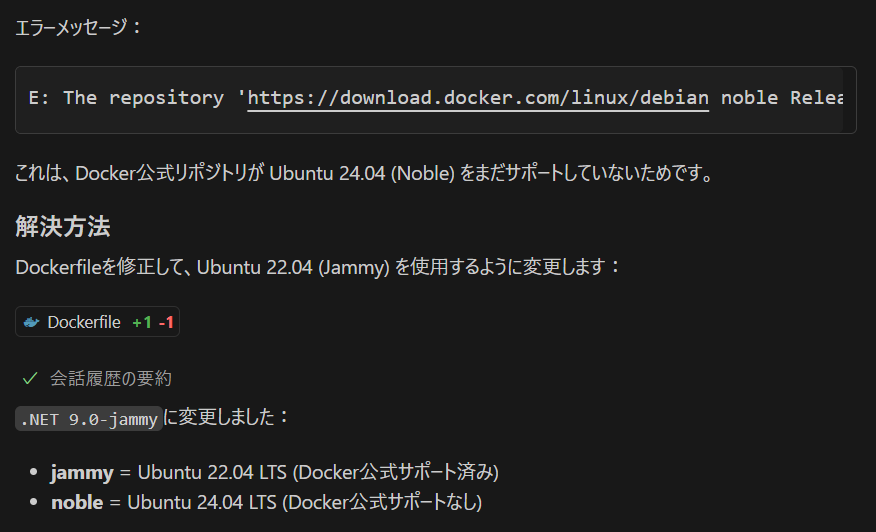
本当かどうかわからないのですが、Docker は 24.04 はサポートしていないらしく、22.04 を使うそうです。ほんとかな?
で、うまくいかないのでやり直し
2日間苦戦したのですが、何をやってもポートエラー等が取れなくなってしまったので、別途 minimal のみな asp.net web api を作って、Dockerfile を整理しました。
Dockerfile.dev
# Development Dockerfile for devcontainer
FROM mcr.microsoft.com/dotnet/sdk:9.0

# Set environment variables
ENV DEBIAN_FRONTEND=noninteractive
ENV TZ=Asia/Tokyo

# Install additional tools
RUN apt-get update && apt-get install -y \
    git \
    curl \
    wget \
    unzip \
    vim \
    nano \
    zsh \
    sudo \
    ca-certificates \
    && rm -rf /var/lib/apt/lists/* \
    && apt-get clean

# Create vscode user with sudo access
RUN groupadd --gid 1000 vscode \
    && useradd --uid 1000 --gid vscode --shell /bin/bash --create-home vscode \
    && echo vscode ALL=\(root\) NOPASSWD:ALL > /etc/sudoers.d/vscode \
    && chmod 0440 /etc/sudoers.d/vscode

# Set up workspace directory with proper permissions
WORKDIR /workspace
RUN chown vscode:vscode /workspace

# Switch to vscode user for the rest of the setup
USER vscode

# Set umask to ensure proper permissions for created files
RUN echo "umask 022" >> /home/vscode/.bashrc \
    && echo "umask 022" >> /home/vscode/.zshrc || true

# Install Oh My Zsh with retry logic and error handling
RUN curl -fsSL https://raw.githubusercontent.com/ohmyzsh/ohmyzsh/master/tools/install.sh -o install-ohmyzsh.sh \
    && chmod +x install-ohmyzsh.sh \
    && bash install-ohmyzsh.sh --unattended \
    && rm -f install-ohmyzsh.sh \
    || echo "Oh My Zsh installation failed, continuing..."

# Set the default shell to zsh (switch back to root temporarily)
USER root
RUN chsh -s /bin/zsh vscode || echo "Failed to change shell, continuing..."

# Switch back to vscode user
USER vscode

# Install dotnet tools with error handling
RUN dotnet tool install --global dotnet-ef || echo "dotnet-ef installation failed" \
    && dotnet tool install --global dotnet-aspnet-codegenerator || echo "dotnet-aspnet-codegenerator installation failed" \
    && dotnet tool install --global dotnet-watch || echo "dotnet-watch installation failed"

# Add dotnet tools to PATH
ENV PATH="${PATH}:/home/vscode/.dotnet/tools"

# Set up git configuration
RUN git config --global --add safe.directory /workspace \
    && git config --global init.defaultBranch main

# Create necessary directories
RUN mkdir -p /home/vscode/.vscode-server/extensions \
    && mkdir -p /home/vscode/.nuget/packages

# Default command
CMD ["sleep", "infinity"]
docker-compose.yml
services:
  aspnet-sample:
    build:
      context: .
      dockerfile: Dockerfile.dev
    ports:
      - "8000:8000"
      - "8001:8001"
    environment:
      - ASPNETCORE_ENVIRONMENT=Development
      - ASPNETCORE_URLS=http://+:8000
    networks:
      - aspnet-network
  mysql:
    image: mysql:8.0
    restart: unless-stopped
    environment:
      MYSQL_ROOT_PASSWORD: root
      MYSQL_DATABASE: mos
      MYSQL_USER: mos
      MYSQL_PASSWORD: mos
    ports:
      - "3306:3306"
    volumes:
      - mysql-data:/var/lib/mysql
      - ./database/init:/docker-entrypoint-initdb.d
    networks:
      - aspnet-network
    healthcheck:
      test: ["CMD", "mysqladmin", "ping", "-h", "localhost"]
      timeout: 20s
      retries: 10
      interval: 10s

networks:
  aspnet-network:
    driver: bridge

volumes:
    mysql-data:
        driver: local
.devcontainer/devcontainer.json
{
  "name": "ASP.NET Core 9.0 Development Container",
  "dockerFile": "../Dockerfile.dev",
  "context": "..",
  "workspaceFolder": "/workspace",
  "shutdownAction": "stopContainer",

  // Mount the workspace folder
  "mounts": [
    "source=${localWorkspaceFolder},target=/workspace,type=bind,consistency=cached"
  ],

  // Use vscode user for development
  "remoteUser": "vscode",

  // Configure tool-specific properties.
  "customizations": {
    "vscode": {
      "extensions": [
        "ms-dotnettools.csharp",
        "ms-dotnettools.csdevkit",
        "ms-vscode.vscode-json",
        "ms-azuretools.vscode-docker"
      ],
      "settings": {
        "dotnet.defaultSolution": "aspnet-minimal-sample.sln",
        "files.exclude": {
          "**/bin": true,
          "**/obj": true
        },
        "terminal.integrated.defaultProfile.linux": "bash"
      }
    }
  },

  // Use 'forwardPorts' to make a list of ports inside the container available locally.
  "forwardPorts": [
    8000,
    8081
  ],

  // Use 'postCreateCommand' to run commands after the container is created.
  "postCreateCommand": "chmod +x .devcontainer/init.sh && .devcontainer/init.sh",

  // Configure container features (simplified)
  "features": {
    "ghcr.io/devcontainers/features/common-utils:2": {
      "installZsh": false,
      "username": "vscode",
      "userUid": "1000",
      "userGid": "1000"
    }
  }
}
init.sh
#!/bin/bash

# Fix permissions for .NET build artifacts
echo "🔧 Fixing permissions for .NET development..."

# Remove existing build artifacts that might have incorrect permissions
echo "🧹 Cleaning build artifacts..."
rm -rf obj bin || true

# Ensure vscode user owns the workspace
echo "👤 Setting ownership..."
sudo chown -R vscode:vscode /workspace

# Set appropriate permissions
echo "🔐 Setting permissions..."
sudo chmod -R 755 /workspace

# Create directories with correct permissions
echo "📁 Creating build directories..."
mkdir -p obj bin

# Clean and restore
echo "🏗️  Cleaning and restoring project..."
dotnet clean
dotnet restore aspnet-minimal-sample.csproj

# Test build
echo "🧪 Testing build..."
dotnet build aspnet-minimal-sample.csproj

echo "✅ Setup complete! You can now run 'dotnet run'"
setup.sh
#!/bin/bash

# DevContainer initialization script
echo "🚀 Starting DevContainer setup..."

# Check if we're in the correct directory
echo "📁 Current directory: $(pwd)"
echo "📄 Files in current directory:"
ls -la

# Check if project file exists
if [ -f "aspnet-minimal-sample.csproj" ]; then
    echo "✅ Found aspnet-minimal-sample.csproj"
    echo "📦 Restoring NuGet packages..."
    dotnet restore aspnet-minimal-sample.csproj
    if [ $? -eq 0 ]; then
        echo "✅ NuGet packages restored successfully"
    else
        echo "❌ Failed to restore NuGet packages"
        exit 1
    fi
else
    echo "❌ aspnet-minimal-sample.csproj not found in current directory"
    exit 1
fi

# Check if solution file exists
if [ -f "aspnet-minimal-sample.sln" ]; then
    echo "✅ Found aspnet-minimal-sample.sln"
else
    echo "⚠️  aspnet-minimal-sample.sln not found"
fi

echo "🎉 DevContainer setup completed successfully!"
Dockerfile と docker-compose.yml なんて生成AIのモデルの中では十分に知見がありそうなものですが、何度やっても失敗します。仕方がないので手作業で修正をした後に Claude Sonnet にレビューして貰います。
おそらく
- ホストのポート番号とダブることを想定していない。
- dotnet build で書き込みされるフォルダーのパーミッション変更が必須
- ホストが windows まわりなのでが問題か?
なところで引っ掛かります。laravel や next.js のほうはビルドする必要がないのでコード変更をした後にブラウザ等でリロードすればいいのですが、dotnet の場合はいちいちビルドしないといけないのが面倒なところです。hot reload もできたような気がするのですが、これは後で調べるとして。
そんな訳で、無事「開発コンテナ」の中での実行まで完了
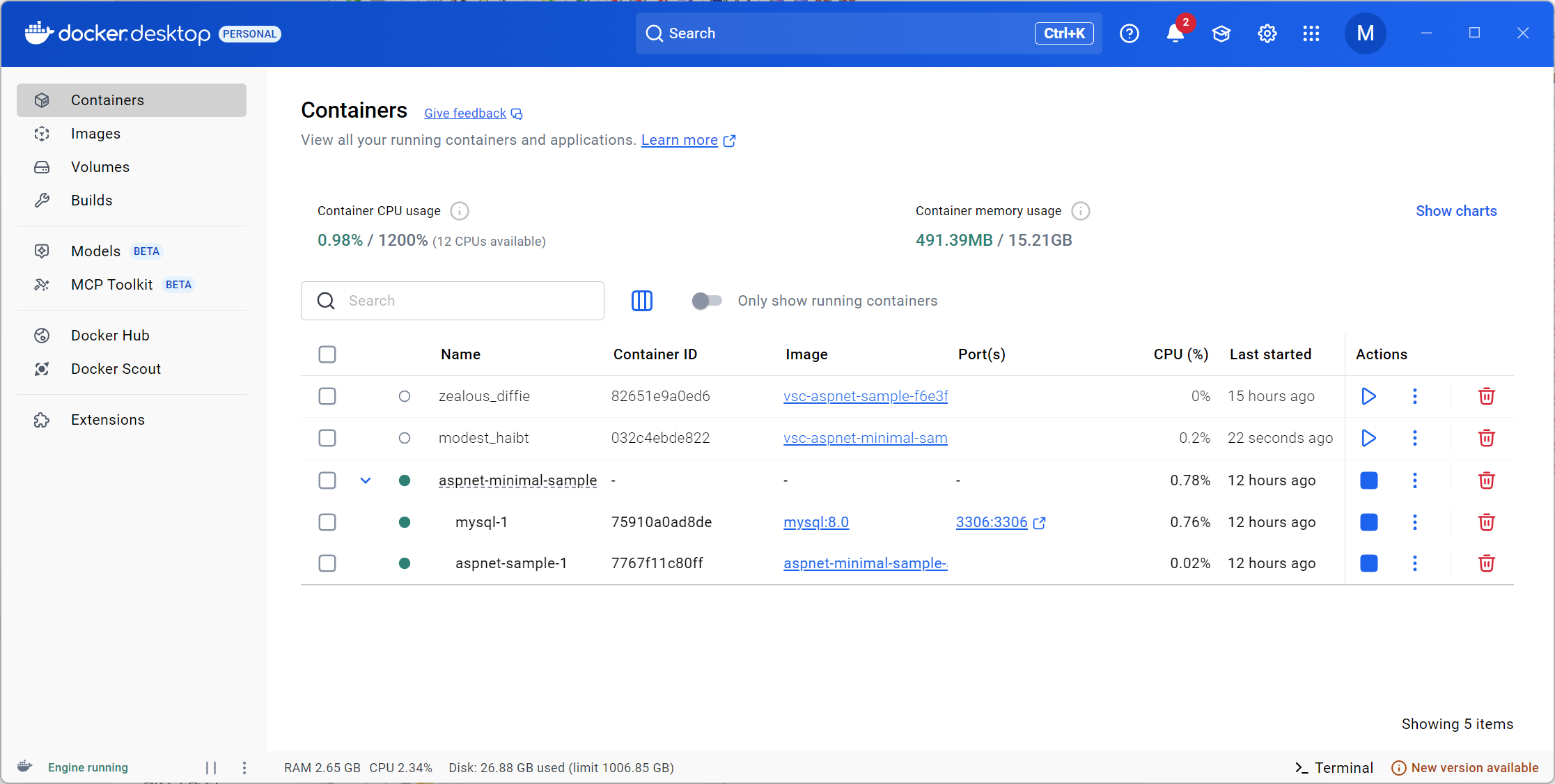
私の場合、xamp での mysql も動いているので mysql-1 の 3306:3306 も変えないと駄目なんですが、ひとまず、これは終了。あとで、azure にデプロイを試していきます。
参照
webapi/aspnet-minimal-sample : ASP.NET Core Minimal による web api サンプル & Docker 動作
https://github.com/moonmile/mos-ai-sample/tree/master/src/webapi/aspnet-minimal-sample