
Kindle Launcher を作るときに、Amazon から商品検索をしたかったので、これに嵌りました。サンプルコード自体は Amazon で提供されているものの、WinRT(Windows ストアアプリ)では動かなかったんですよね。
■アフリエイトキーを取得する
http://affiliate.amazon.co.jp/
上記からアフリエイトキーを作成します。AWS とは違うので注意が必要(暫く使っていなかったので探した探した)。まあ、商品検索 API を使いたいのにクレジットカード登録とかは変な話なので。
API キーの取得等は以下を参照してください。アプリでは「アクセスキー」と「シークレットキー」の2つを使います。
Access Key IDとSecret Access Keyの取得 – Amazon Web サービス
http://www.ajaxtower.jp/ecs/pre/index1.html
■SignedRequestHelper.cs を修正する
C# では、アフリエイト API を使うときにヘルパークラスを使うと便利です。WPF や Windows Phone の場合は、提供されている SignedRequestHelper のままでいいのですが、WinRT の場合はちょっと違います。
[C#] Amazon Product Advertising API の利用(REST サンプルコードの修正) | プログラミング生放送
http://pronama.azurewebsites.net/2014/05/23/csharp-amazon-product-advertising-api-rest-sample-code-modified/
↓こんな風に修正してください。
SignedRequestHelper.cs for WinRT
https://gist.github.com/moonmile/16c950174d0c276cc2c3
System.Security.Cryptography じゃなくて、Windows.Security.Cryptography.Core を使うってのがミソですね。下に元ネタがあります。
c# – Working with hmacsha256 in windows store app – Stack Overflow
http://stackoverflow.com/questions/13293420/working-with-hmacsha256-in-windows-store-app
SHA で MAC キーを使うところが少し違うだけで、ヘルパークラスの使い方は変わりません。
おそらく、WinRT での違いがあって、ストア版の Amazon アプリが増えないのかもしれません。セキュリティ回りの名前空間とクラスが再整理(改悪?)されているので、いままでのコードが使えないのが面倒です。互換クラスを作ってしまえばよいような気もするのですが。
■指定したキーワードで商品情報を検索する
SignedRequestHelper を使って Amazon の商品を検索しているところがこんな感じです。
private const string MY_AWS_ACCESS_KEY_ID = "YOUR_AWS_ACCESS_KEY_ID";
private const string MY_AWS_SECRET_KEY = "YOUR_AWS_SECRET_KEY";
private const string DESTINATION = "ecs.amazonaws.jp";

/// <summary>
/// 検索ボタンをクリック
/// </summary>
/// <param name="sender"></param>
/// <param name="e"></param>
private async void OnButtonItemSearch(object sender, RoutedEventArgs e)
{
    var helper = new SignedRequestHelper(MY_AWS_ACCESS_KEY_ID, MY_AWS_SECRET_KEY, DESTINATION, "mycompany-22");
    var param = new Dictionary<string, String>();
    param["Service"] = "AWSECommerceService";
    param["Version"] = "2011-08-01";
    param["Operation"] = "ItemSearch";
    param["Keywords"] = this.vm.Title + " Kindle";
    param["Author"] = this.vm.Author;
    param["SearchIndex"] = "All"; // "Books";
    param["ResponseGroup"] = "Large";

    try
    {
        var requestUrl = helper.Sign(param);
        var request = new System.Net.Http.HttpClient();
        var res = await request.GetStringAsync(new Uri(requestUrl));
        // Debug.WriteLine(res);

        var doc = ExDocument.LoadXml(res);
        int TotalPages = doc * "TotalPages";
        int TotalResults = doc * "TotalResults";
        vm.Total = TotalResults;

        int count = 0;
        vm.Books.Clear();

        for (int i = 1; i <= TotalPages; i++)
        {
            param["ItemPage"] = i.ToString();

            await Task.Delay(1000); // ちょっとだけ待つ
            var reqUrl = helper.Sign(param);
            res = await request.GetStringAsync(new Uri(reqUrl));
            doc = ExDocument.LoadXml(res);
            var ASINs = doc * "Item" * "ASIN";
            foreach (var it in ASINs)
            {
                count++;
                var asin = it.Value;
                var item = it.Parent;
                var format = item * "ItemAttributes" * "Format";

                if (format == "Kindle本")
                {
                    string title = item * "ItemAttributes" * "Title";
                    string iconurl = item * "LargeImage" * "URL";
                    Debug.WriteLine("{0} ASIN:{1} Title:{2} img:{3} ", count, asin, title, iconurl);

                    vm.Books.Add(new Book { ASIN = asin, Title = title, IconUrl = iconurl });
                    vm.TotalKindle = vm.Books.Count();
                    vm.TotalStr = string.Format("{0}/{1}", vm.TotalKindle, vm.Total);
                }
            }
        }
    }
    catch (Exception ex)
    {
        // MessageBox.Show("API制限に達しました。暫く経ってから実行してくださいn" + ex.Message);
        Debug.WriteLine(ex.Message);
    }
}
ItemSearch で戻される検索はページ単位で返ってくるのと、検索数が制限されています。サイトでは結構な数で検索できるのですが、API の場合は、4000件(400ページ)程度のようです。
この検索では、商品画像(本の表紙)を取るために Large にして商品データを取っています。まあ、Kindle Launcher の書籍検索がちょっと遅いのはそれが原因でもあります。ResponseGroup を変更するともうちょっとデータ量を絞れるでしょう。
SearchIndex を Books だけにすると「和書」だけになるので、All にしています。洋書も検索結果に入れたかったのです。Keywords に Kindle を含めているのは「Kindle本」に絞るためです。こうすると、おそらく Kindle 対象の本だけが検索できるはずです。そして、もういちど取得したデータを改めて」「Kindle本」で検索しています。
データは XML 形式で取得できるので適当にパースします。ここでは自前の ExDoc を使ってパースをしています。
https://github.com/moonmile/ExDoc/
にあるのは、Windows デスクトップ版なので、近いうちに PCL 版をアップしておきます。
XML データからクラスを作成する VS のアドイン(だっけ?)もあるので、それを使うのもよいでしょう。
■検索した商品を表示する
表示自体は GridView でやっています。
そのままのテンプレートでは使いづらいので「GridView.ItemTemplate」で自前テンプレートを作ります。
<!-- 水平スクロール グリッド -->
<GridView
    Grid.Column="1" Grid.Row="1"
    x:Name="itemGridView"
    ItemsSource="{Binding Books}"
    TabIndex="1"
    Padding="10"
    SelectionMode="{Binding SelectMode}"
    IsSwipeEnabled="false"
    Tapped="itemGridView_Tapped">
    <GridView.ItemTemplate>
        <DataTemplate>
            <Grid HorizontalAlignment="Left" Width="250" Height="250">
                <Border Background="{StaticResource ListViewItemPlaceholderBackgroundThemeBrush}">
                    <Image Source="{Binding IconUrl}" Stretch="UniformToFill" />
                </Border>
                <StackPanel VerticalAlignment="Bottom" Orientation="Vertical"
                    Background="{StaticResource ListViewItemOverlayBackgroundThemeBrush}">
                    <TextBlock Text="{Binding ASIN}"
                        Height="18"
                        Foreground="{StaticResource ListViewItemOverlaySecondaryForegroundThemeBrush}"
                        TextWrapping="NoWrap" Margin="3"/>
                    <TextBlock Text="{Binding Title}"
                        Foreground="{StaticResource ListViewItemOverlayForegroundThemeBrush}"
                        Height="30" Margin="3"
                        TextWrapping="NoWrap"/>
                </StackPanel>
            </Grid>
        </DataTemplate>
    </GridView.ItemTemplate>
</GridView>
IconUrl とか ASIN とかをバインドしておけば、自動的に表示されますね。
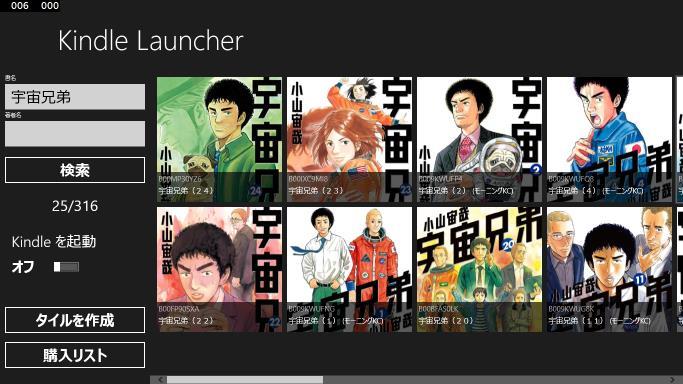
こんな風に表示されます。