
実機を回転したときに縦置きと横置きの対応する方法は、基本はフローレイアウトを使うほうがいいのですが、コントロールがたくさん並んでいる場合にはなかなか大変ですね。…という理由を付けて、まとまったものが見つからなかったので、3つのプラットフォームでXamarinでどう対応するのかを残しておきます。
それぞれ方法があると思いますが、Potable Class Library で DataModel を共有化することと、3つのプラットフォームで似た方法で作れる、ことを目的とします。
■Windowsストアプリ の場合
- 横置き(Landscape)と縦置き(Portrait)の2つのViewStateを作る。
- PageクラスのLayoutUpdatedイベントで DisplayInformation.GetForCurrentView() でデバイスの向きを判断して、VisualStateManager.GoToState メソッドを呼び出す。
Blend を使って、VisualStateGroup を作って、その中に2つの ViewState を作る。”Landscape” と “Portrait” を作っておく。
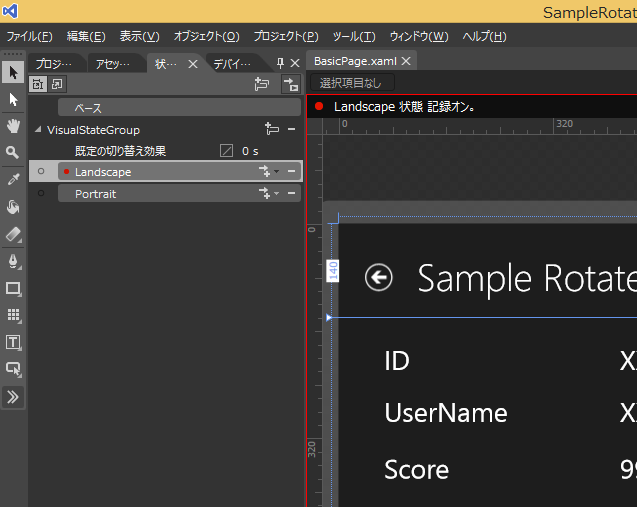
コントロールを Portrait を設定してデザインを作る。
画面自体は1画面なので、XAMLに対して、this.DataContext = _model; のようにバインドができる。
回転時はイベントを取得して、ViewState を切り替える。
private void pageRoot_LayoutUpdated(object sender, object e)
{
    DisplayInformation displayInfo = DisplayInformation.GetForCurrentView();
    switch (displayInfo.CurrentOrientation)
    {
        // 横置き
        case DisplayOrientations.Landscape:
        case DisplayOrientations.LandscapeFlipped:
            VisualStateManager.GoToState(this, "Landscape", true);
            break;
        // 縦置き
        case DisplayOrientations.Portrait:
        case DisplayOrientations.PortraitFlipped:
            VisualStateManager.GoToState(this, "Portrait", true);
            break;
    }
}
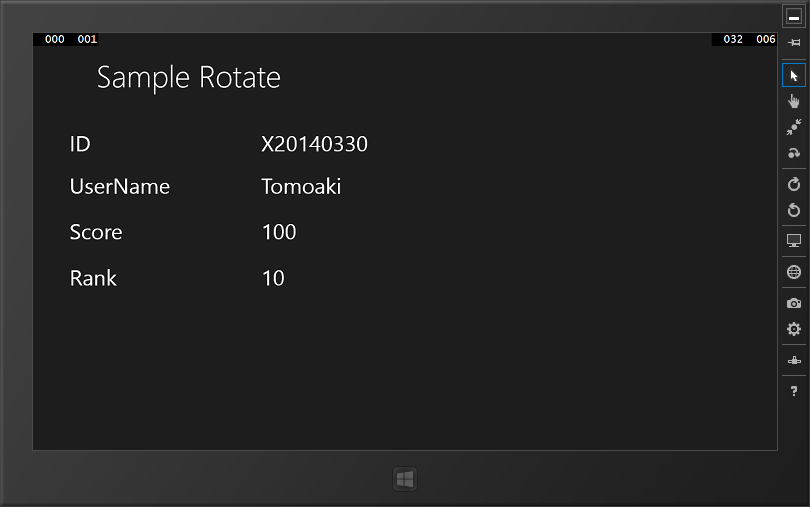
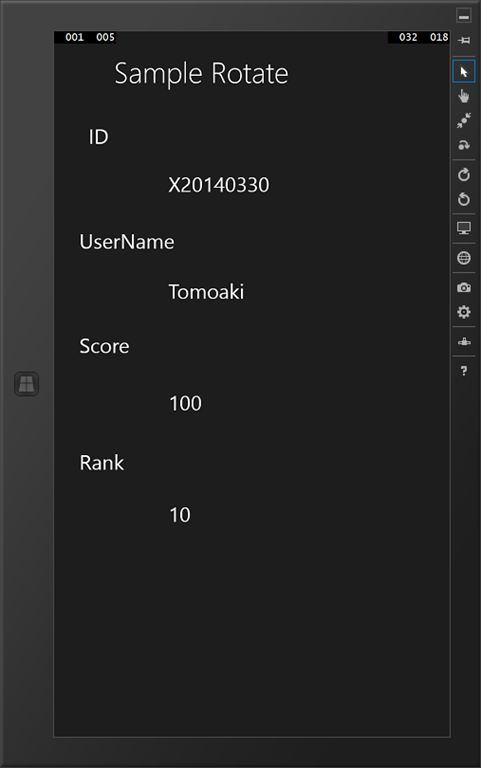
横置きと縦置きで、コントロールの位置はこんな風に自由に配置できる。方法としてはスナップも同じ。というかスナップと同じ方法。
■Android の場合
- Alternative Layouts で、landscape 用のレイアウトを作る。
- layout-land/Main.axml を横置き用に編集する。
- ウィジット(コントロール)の ID は元の Portrait と同じにしておく。
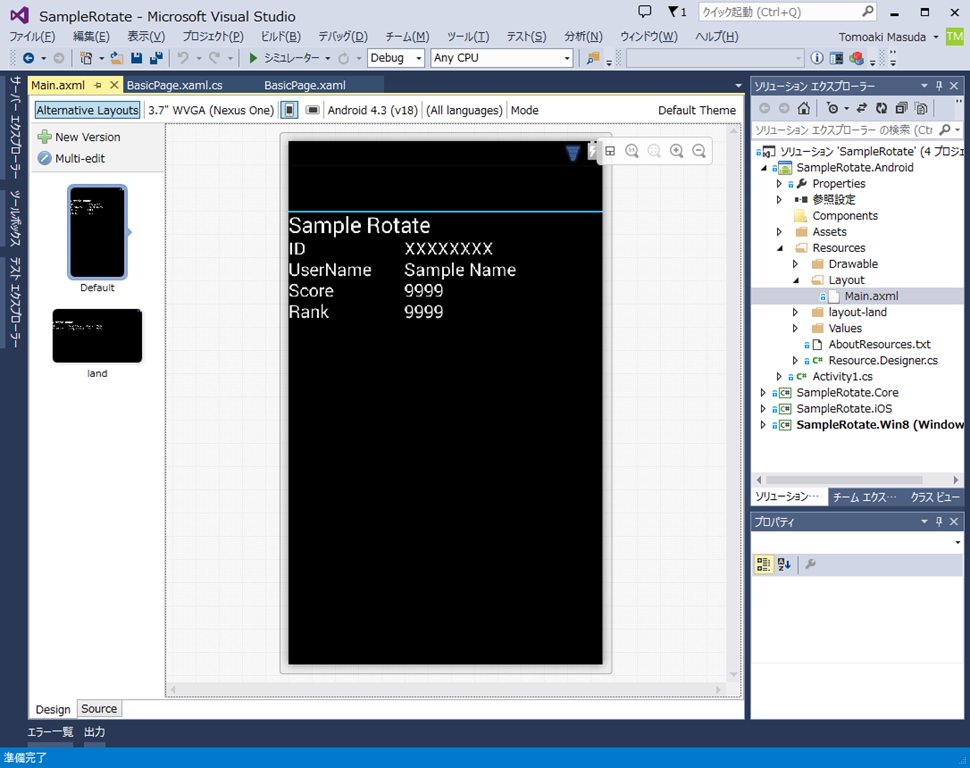
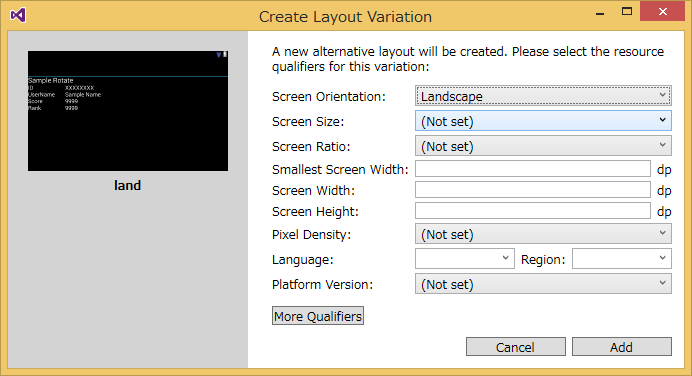
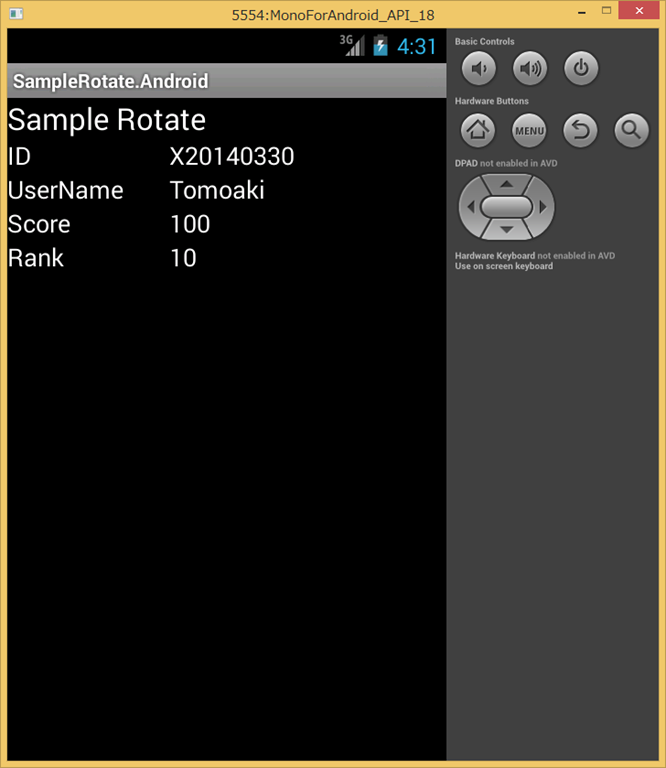
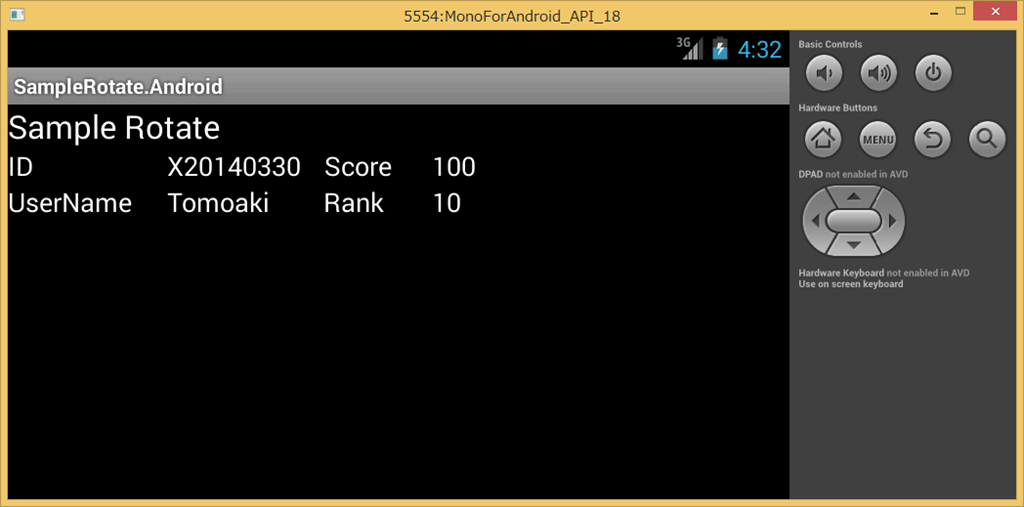
回転したときには内部で自動的に判断して、layout-land/Main.axml が呼び出される。*.axml ファイルが2つになるので、IDをそろえておく。揃えておくと、FindViewById メソッドで統一して扱える。
private void UpdateData()
{
    FindViewById(Resource.Id.textViewID).Text = _model.ID;
    FindViewById(Resource.Id.textViewUserName).Text = _model.UserName;
    FindViewById(Resource.Id.textViewScore).Text = _model.Score.ToString();
    FindViewById(Resource.Id.textViewRank).Text = _model.Rank.ToString();
}
Android エミュレータは Ctrl+F11 で回転できる。
■iOS の場合
- Storyboard で、横置き用の ViewController を作成する。
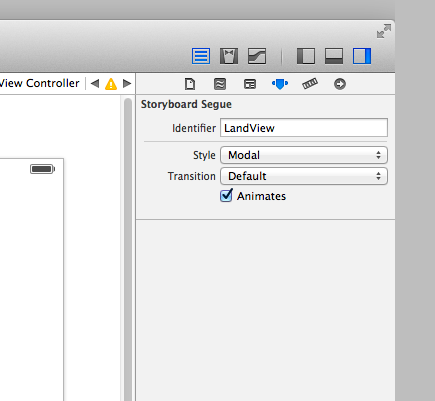
- Storyboard Segue に名前を付けおく。
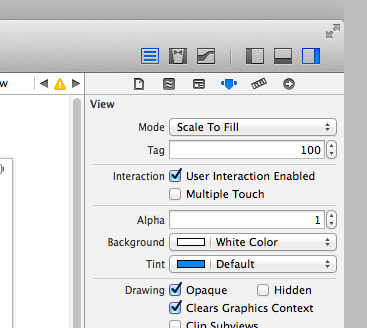
- 元の ViewController の View のタグを付けておく(初期化判断用)
- 同じ ViewController クラスに設定しておく。
- UIDeviceOrientationDidChangeNotification イベントで、PerformSegue メソッドを使って View を切り替える。
最初の画面が縦置き(Portrait)で、横置き(Landscape)に画面遷移する、という想定で作る。
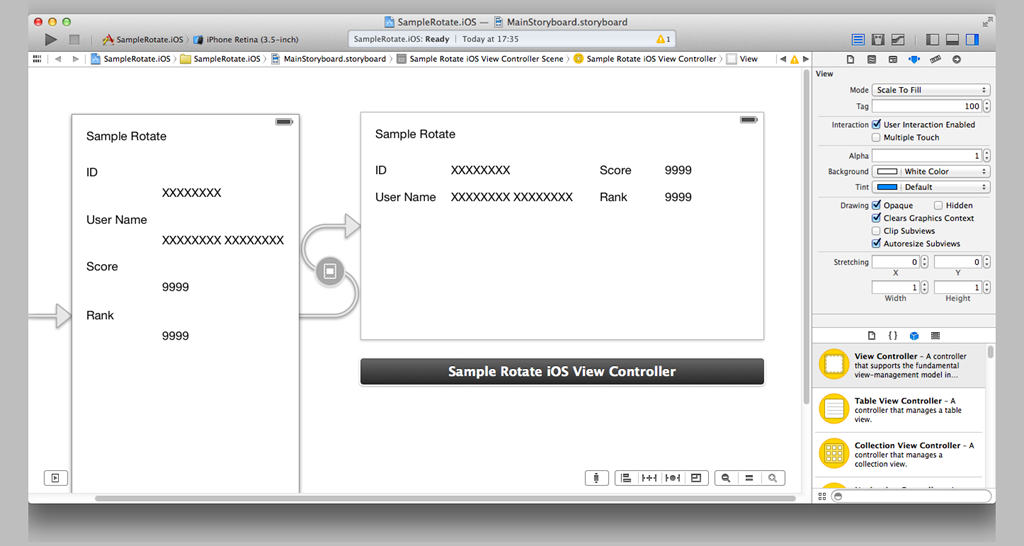
切り替えを「Model」にしておく。
最初の View に Tag を付けておく。これは最初の画面のみ UIDeviceOrientationDidChangeNotification を設定するため。
AwakeFromNib をオーバーライドして UIDeviceOrientationDidChangeNotification イベントを登録。回転イベントが発生したら、UIDevice.CurrentDevice.Orientation で View を切り替える。
bool isShowingLandscaeView ;
public override void AwakeFromNib ()
{
    base.AwakeFromNib ();
    // main view only
    if (this.View.Tag == 100) {
        // main view only,
        // set to main view's tag 100.
        this.isShowingLandscaeView = false;
        UIDevice.CurrentDevice.BeginGeneratingDeviceOrientationNotifications ();
        NSNotificationCenter.DefaultCenter.AddObserver (
            "UIDeviceOrientationDidChangeNotification",
            orientationChanged);
    }
}
void orientationChanged( NSNotification obj )
{
    var deviceOrientation = UIDevice.CurrentDevice.Orientation;
    if (deviceOrientation == UIDeviceOrientation.LandscapeLeft ||
        deviceOrientation == UIDeviceOrientation.LandscapeRight) {
        if (isShowingLandscaeView == false) {
            this.PerformSegue ("LandView", this);
            isShowingLandscaeView = true;
        }
    } else if (deviceOrientation == UIDeviceOrientation.Portrait ||
        deviceOrientation == UIDeviceOrientation.PortraitUpsideDown) {
        if (isShowingLandscaeView == true) {
            this.DismissViewController (false, null);
            isShowingLandscaeView = false;
        }
    }
}
元画面(portrait)から lanscape に遷移するときは、this.PerformSegue (“LandView”, this); を使い、landscape から元画面(portrait)に戻るときは this.DismissViewController (false, null); を使う。これは、storybord の画面遷移と同じ。遷移のアニメーションと回転時のアニメーションが競合するよな気もするんだが…このほうは Apple のマニュアルにもあるので、大丈夫だと思う。
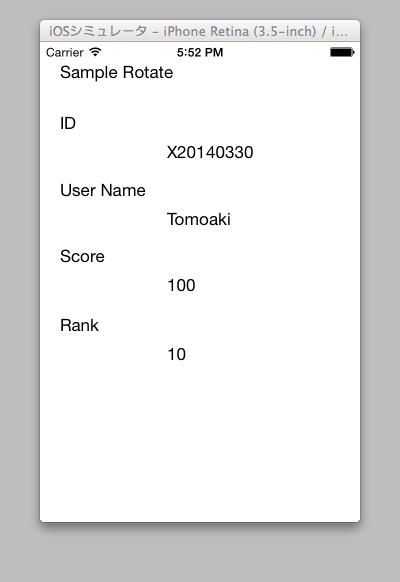
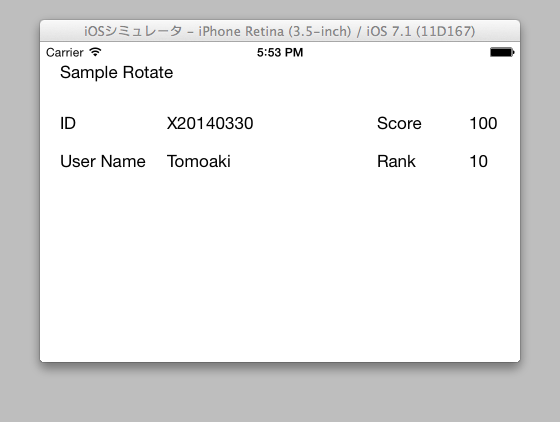
2つの画面に分かれるが、同じ ViewController を示すようにして、IBOutlet させたプロパティにDataModel から設定する。
■ DataModel を PCL で作る
データ自体は、DataModel 内にひとつにしたいので、複数の View に対応する必要がある。基本は画面遷移をしたときと同じなのだが、画面のコントロール/ウィジットが多い場合には意外と大変かも。ただし、縦横で別々に作ったほうが使いやすいデザインにはなる。
| Winストア | Android | iOS | |
| デザイン | 1つのXAML | 2つの AXMLファイル |
2つのViewController |
| 回転 切り替え |
コード | 自動 | コード |
| データ 設定 |
データバインド | FindViewById で取得。IDを揃える。 | IBOutletで取得 |
上記のサンプルは git で公開しています。https://github.com/moonmile/SampleRotate
機会を作って MvvmCross でも。