
花札ゲームで、役ができたときに数秒間だけダイアログを出そうとしているので、その実験です。
■Blend で Storyboard を作る
ダイアログを開くときの sbOpen と閉じるときの sbClose という二つの Storyboard を作っておきます。
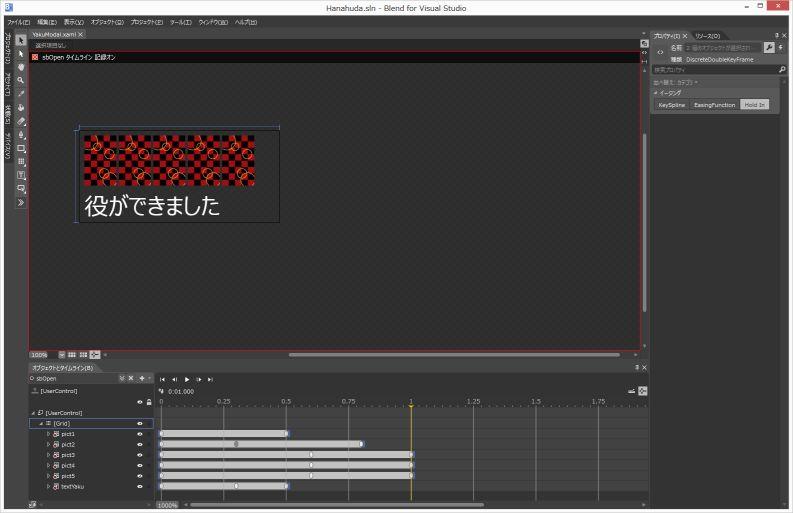
本当は枚数がいろいろなのですが、簡単にするために5枚だけ配置しておきます。タネやカスが成立したときは、別のユーザーコントロールを使うようにしようかなと。
長いですが、Blend で作った storyboard を晒します。
<UserControl.Resources>
	<Storyboard x:Name="sbOpen">
		<DoubleAnimationUsingKeyFrames Storyboard.TargetProperty="(UIElement.RenderTransform).(CompositeTransform.TranslateX)" Storyboard.TargetName="pict1">
			<EasingDoubleKeyFrame KeyTime="0" Value="634"/>
			<EasingDoubleKeyFrame KeyTime="0:0:0.5" Value="0"/>
		</DoubleAnimationUsingKeyFrames>
		<DoubleAnimationUsingKeyFrames Storyboard.TargetProperty="(UIElement.RenderTransform).(CompositeTransform.TranslateX)" Storyboard.TargetName="pict2">
			<DiscreteDoubleKeyFrame KeyTime="0:0:0.3" Value="565"/>
			<EasingDoubleKeyFrame KeyTime="0:0:0.8" Value="0"/>
		</DoubleAnimationUsingKeyFrames>
		<DoubleAnimationUsingKeyFrames Storyboard.TargetProperty="(UIElement.RenderTransform).(CompositeTransform.TranslateX)" Storyboard.TargetName="pict3">
			<DiscreteDoubleKeyFrame KeyTime="0:0:0.6" Value="494"/>
			<EasingDoubleKeyFrame KeyTime="0:0:1" Value="0"/>
		</DoubleAnimationUsingKeyFrames>
		<DoubleAnimationUsingKeyFrames Storyboard.TargetProperty="(UIElement.RenderTransform).(CompositeTransform.TranslateX)" Storyboard.TargetName="pict4">
			<DiscreteDoubleKeyFrame KeyTime="0:0:0.6" Value="426"/>
			<EasingDoubleKeyFrame KeyTime="0:0:1" Value="0"/>
		</DoubleAnimationUsingKeyFrames>
		<DoubleAnimationUsingKeyFrames Storyboard.TargetProperty="(UIElement.RenderTransform).(CompositeTransform.TranslateX)" Storyboard.TargetName="pict5">
			<DiscreteDoubleKeyFrame KeyTime="0:0:0.6" Value="357"/>
			<EasingDoubleKeyFrame KeyTime="0:0:1" Value="0"/>
		</DoubleAnimationUsingKeyFrames>
		<DoubleAnimationUsingKeyFrames Storyboard.TargetProperty="(UIElement.Opacity)" Storyboard.TargetName="pict1">
			<EasingDoubleKeyFrame KeyTime="0" Value="0"/>
			<EasingDoubleKeyFrame KeyTime="0:0:0.5" Value="1"/>
		</DoubleAnimationUsingKeyFrames>
		<DoubleAnimationUsingKeyFrames Storyboard.TargetProperty="(UIElement.Opacity)" Storyboard.TargetName="pict2">
			<EasingDoubleKeyFrame KeyTime="0" Value="0"/>
			<DiscreteDoubleKeyFrame KeyTime="0:0:0.3" Value="0"/>
			<EasingDoubleKeyFrame KeyTime="0:0:0.8" Value="1"/>
		</DoubleAnimationUsingKeyFrames>
		<DoubleAnimationUsingKeyFrames Storyboard.TargetProperty="(UIElement.Opacity)" Storyboard.TargetName="pict3">
			<EasingDoubleKeyFrame KeyTime="0" Value="0"/>
			<DiscreteDoubleKeyFrame KeyTime="0:0:0.6" Value="0"/>
			<EasingDoubleKeyFrame KeyTime="0:0:1" Value="1"/>
		</DoubleAnimationUsingKeyFrames>
		<DoubleAnimationUsingKeyFrames Storyboard.TargetProperty="(UIElement.Opacity)" Storyboard.TargetName="pict4">
			<EasingDoubleKeyFrame KeyTime="0" Value="0"/>
			<DiscreteDoubleKeyFrame KeyTime="0:0:0.6" Value="0"/>
			<EasingDoubleKeyFrame KeyTime="0:0:1" Value="1"/>
		</DoubleAnimationUsingKeyFrames>
		<DoubleAnimationUsingKeyFrames Storyboard.TargetProperty="(UIElement.Opacity)" Storyboard.TargetName="pict5">
			<EasingDoubleKeyFrame KeyTime="0" Value="0"/>
			<DiscreteDoubleKeyFrame KeyTime="0:0:0.6" Value="0"/>
			<EasingDoubleKeyFrame KeyTime="0:0:1" Value="1"/>
		</DoubleAnimationUsingKeyFrames>
		<DoubleAnimationUsingKeyFrames Storyboard.TargetProperty="(UIElement.Opacity)" Storyboard.TargetName="textYaku">
			<EasingDoubleKeyFrame KeyTime="0" Value="0"/>
			<EasingDoubleKeyFrame KeyTime="0:0:0.3" Value="1"/>
		</DoubleAnimationUsingKeyFrames>
		<ColorAnimationUsingKeyFrames Storyboard.TargetProperty="(TextBlock.Foreground).(SolidColorBrush.Color)" Storyboard.TargetName="textYaku">
			<EasingColorKeyFrame KeyTime="0" Value="White"/>
			<EasingColorKeyFrame KeyTime="0:0:0.3" Value="#FFDAD002"/>
			<EasingColorKeyFrame KeyTime="0:0:0.5" Value="#FFFBFBFB"/>
		</ColorAnimationUsingKeyFrames>
	</Storyboard>
	<Storyboard x:Name="sbClose">
		<DoubleAnimation Duration="0:0:0.4" To="0" Storyboard.TargetProperty="(UIElement.Opacity)" Storyboard.TargetName="textYaku" d:IsOptimized="True">
			<DoubleAnimation.EasingFunction>
				<CubicEase EasingMode="EaseIn"/>
			</DoubleAnimation.EasingFunction>
		</DoubleAnimation>
		<DoubleAnimation Duration="0:0:0.5" To="0" Storyboard.TargetProperty="(UIElement.Opacity)" Storyboard.TargetName="pict1" d:IsOptimized="True">
			<DoubleAnimation.EasingFunction>
				<CubicEase EasingMode="EaseIn"/>
			</DoubleAnimation.EasingFunction>
		</DoubleAnimation>
		<DoubleAnimation Duration="0:0:0.5" To="0" Storyboard.TargetProperty="(UIElement.Opacity)" Storyboard.TargetName="pict2" d:IsOptimized="True">
			<DoubleAnimation.EasingFunction>
				<CubicEase EasingMode="EaseIn"/>
			</DoubleAnimation.EasingFunction>
		</DoubleAnimation>
		<DoubleAnimation Duration="0:0:0.5" To="0" Storyboard.TargetProperty="(UIElement.Opacity)" Storyboard.TargetName="pict3" d:IsOptimized="True">
			<DoubleAnimation.EasingFunction>
				<CubicEase EasingMode="EaseIn"/>
			</DoubleAnimation.EasingFunction>
		</DoubleAnimation>
		<DoubleAnimation Duration="0:0:0.5" To="0" Storyboard.TargetProperty="(UIElement.Opacity)" Storyboard.TargetName="pict4" d:IsOptimized="True">
			<DoubleAnimation.EasingFunction>
				<CubicEase EasingMode="EaseIn"/>
			</DoubleAnimation.EasingFunction>
		</DoubleAnimation>
		<DoubleAnimation Duration="0:0:0.5" To="0" Storyboard.TargetProperty="(UIElement.Opacity)" Storyboard.TargetName="pict5" d:IsOptimized="True">
			<DoubleAnimation.EasingFunction>
				<CubicEase EasingMode="EaseIn"/>
			</DoubleAnimation.EasingFunction>
		</DoubleAnimation>
	</Storyboard>
</UserControl.Resources>
花札は、右から左に流れる感じで出てきます。1枚1枚ちょっと違うタイミングで出てくるとゲームらしいですよね。あと、役の名前が出るときにちょっとだけ黄色から白に色が変化します。このあたりグラフィックの「アクセラレーター」が有効に働くように注意しないとダメなのよで、たとえば、フォントの大きさを変えようとするとパフォーマンスが落ちますという警告が出ます。
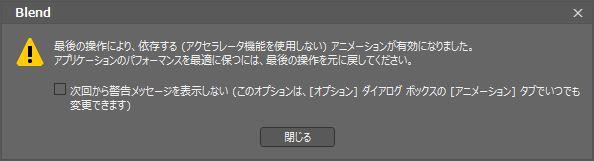
これに注意するとスムースなアニメーションが作れるかなと。
あと、札を表示するときに一瞬だけ光を付けたかったのですが(ちょっとだけ光るやつ)WinRT の XAML には、Effect 関係がなくなっているので(コードで追加するんだっけ?)、これはあとで調節します。代案としては、花札の大きさが固定なのであらかじめ、縁をぼかした画像を用意して貼り付けておくのがよいかなと思っています。
■ユーザコントロールを配置する
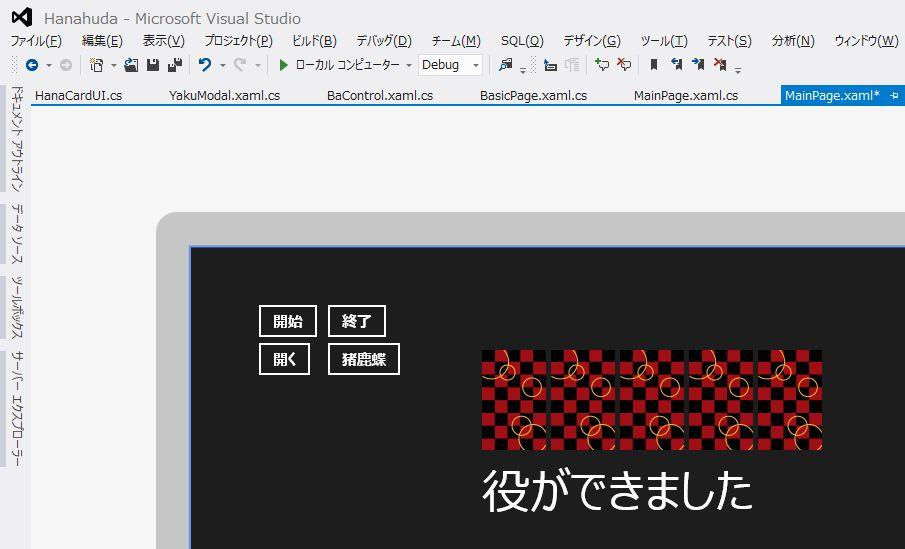
役を表示するためのダイアログと、テストようのボタンを配置します。
<Grid Background="{StaticResource ApplicationPageBackgroundThemeBrush}">
    <local:YakuModal
        x:Name="yakuDlg"
        HorizontalAlignment="Left" Margin="281,93,0,0" VerticalAlignment="Top"/>
    <Button
        Click="StartClick"
        Content="開始" HorizontalAlignment="Left" Margin="65,55,0,0" VerticalAlignment="Top"/>
    <Button
        Click="EndClick"
        Content="終了" HorizontalAlignment="Left" Margin="134,55,0,0" VerticalAlignment="Top"/>
    <Button
        Click="OpenClick"
        Content="開く" HorizontalAlignment="Left" Margin="65,93,0,0" VerticalAlignment="Top"/>
    <Button
        Click="InoClick"
        Content="猪鹿蝶" HorizontalAlignment="Left" Margin="134,93,0,0" VerticalAlignment="Top"/>
</Grid>
■モーダルダイアログの呼び出しコードを書く
MessageDialog 風に、ShowAsync メソッドを使って await で非同期待ちをしたいので、こんな風にできたらいいなぁ、という感じで書きます。OpenClick のところでデバッグ出力をしているのは、start/end がきちんと待ちになっているかどうかのチェック用です。
/// <summary>
/// ダイアログを開くだけ
/// </summary>
/// <param name="sender"></param>
/// <param name="e"></param>
private async void StartClick(object sender, RoutedEventArgs e)
{
	await this.yakuDlg.OpenAsync();
}
/// <summary>
/// ダイアログを閉じるだけ
/// </summary>
/// <param name="sender"></param>
/// <param name="e"></param>
private async void EndClick(object sender, RoutedEventArgs e)
{
	await this.yakuDlg.CloseAsync();
}
/// <summary>
/// Open/Close が連続した ShowAsync メソッドを使う
/// </summary>
/// <param name="sender"></param>
/// <param name="e"></param>
private async void OpenClick(object sender, RoutedEventArgs e)
{
	System.Diagnostics.Debug.WriteLine("start");
	await this.yakuDlg.ShowAsync(5000);
	System.Diagnostics.Debug.WriteLine("end");
}

/// <summary>
/// 猪鹿蝶の役が揃った場合
/// </summary>
/// <param name="sender"></param>
/// <param name="e"></param>
private async void InoClick(object sender, RoutedEventArgs e)
{
	var lst = new List<Card>();
	lst.Add(new Card("G1"));
	lst.Add(new Card("J1"));
	lst.Add(new Card("F1"));
	this.yakuDlg.Cards = lst;
	this.yakuDlg.Message = "猪鹿蝶";
	await this.yakuDlg.ShowAsync(3000);
}
■モーダルダイアログ側のコードを書く
役を表示するモーダルダイアログのコードを書きます。
アニメーションが、sbOpen と sbClose でわかれているので、それを連続させるために Completed イベントを使っています。そして、コードを簡単にするために await Task.Delay(100); を使って完了待ちをします。
最適化するならば、sbOpen.Completed イベントの中で、sbClose.Begin() を呼び出せばよいのですが、そこは、ShowSync の実装で await の羅列を使いためにこうしています。
public sealed partial class YakuModal : UserControl
{
	public YakuModal()
	{
		this.InitializeComponent();

		// アニメーションの完了イベント
		this.sbOpen.Completed += (s, e) => { _completed = true; };
		this.sbClose.Completed += (s, e) => {
			_completed = true;
			this.Visibility = Windows.UI.Xaml.Visibility.Collapsed;
		};

		_picts = new List<Image>();
		_picts.Add( this.pict1 );
		_picts.Add( this.pict2 );
		_picts.Add( this.pict3 );
		_picts.Add( this.pict4 );
		_picts.Add( this.pict5 );
	}

	private List<Card> _cards;
	/// <summary>
	/// 表示する花札を設定する
	/// </summary>
	public List<Card> Cards {
		get { return _cards; }
		set
		{
			_cards = value;
			if (value != null)
			{
				int i = 0;
				foreach (var c in value)
				{
					if (i < _picts.Count)
					{
						_picts[i].Visibility = Windows.UI.Xaml.Visibility.Visible;
						_picts[i].Source = CardUI.GetResName(c.ID);
					}
					i++;
				}
				for (; i < _picts.Count; i++)
				{
					_picts[i].Visibility = Windows.UI.Xaml.Visibility.Collapsed;
				}
			}

		}
	}
	string _message;
	/// <summary>
	/// 表示するメッセージを設定する
	/// </summary>
	public string Message
	{
		get
		{
			return _message;
		}
		set
		{
			_message = value;
			this.textYaku.Text = value;
		}
	}

	// アニメーションの完了フラグ
	private bool _completed = false;
	private List<Image> _picts;

	/// <summary>
	/// ダイアログを開く
	/// </summary>
	/// <returns></returns>
	public Task OpenAsync()
	{
		_completed = false;
		this.sbOpen.Begin();
		this.Visibility = Windows.UI.Xaml.Visibility.Visible;
		Task t = Task.Run(async () =>
		{
			while (_completed == false)
			{
				await Task.Delay(100);
			}
		});
		return t;
	}

	/// <summary>
	/// ダイアログを閉じる
	/// </summary>
	/// <returns></returns>
	public Task CloseAsync()
	{
		_completed = false;
		this.sbClose.Begin();
		Task t = Task.Run(async () =>
		{
			while (_completed == false)
			{
				await Task.Delay(100);
			}
		});
		return t;
	}

	/// <summary>
	/// 指定した時間表示して閉じる
	/// </summary>
	/// <param name="wait"></param>
	public async Task<Task> ShowAsync(int wait = 0)
	{
		await OpenAsync();
		await Task.Delay(wait);
		await CloseAsync();
		// await が使いたいので、空のタスクを返す
		return new Task(() => { });
		// 最後のタスクを返すのでも ok
		// return CloseAsync();
	}
}
ShowAsync メソッドでは指定したミリ秒数で表示待ちをします。こんな風に、OpenAsync, Task.Delay, CloseAsync の羅列で書けるから良いかなと。
このあたりの内部実装はさておき、外部から使うときは、
await this.yakuDlg.ShowAsync(3000);
な風にしようというのが UIDD なところです。
■実行してみる
ローカルコンピュータで実際に実行してみます。
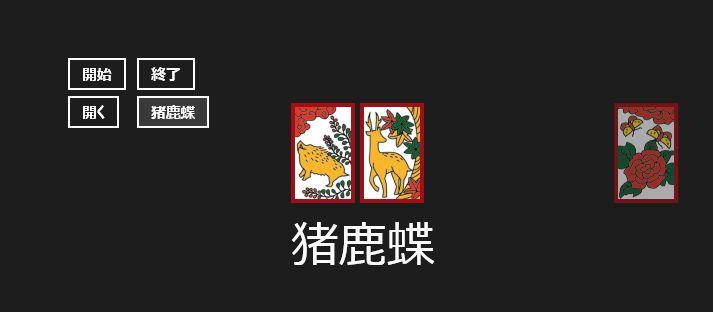

右からすすーっと花札が出てきて、真ん中で猪鹿蝶が確定。しばくすると、すっと消えます。というモーダルダイアログができます。カードゲームにありがちなアニメーションだし、業務アプリのメッセージでも取り入れできそうな雰囲気です(自画自賛)。ためしに、acer w500 なタブレットPC で動かしてみましたが、スムースに動きます。
ただ、これだとゲームとしてかなり寂しい感じなので、影とかぼかしのエフェクトが入れたいですね…ちょっと調査しますか。